Dashboard layout and editing
A dashboard has one layout of widgets, rows and tabs. You change the layout in edit mode. This page shows each task. For the layout in YAML, see Layout in the YAML reference.
Edit mode
Click Edit on a dashboard to change its layout. Edit mode is a draft: viewers of the dashboard see no change until you click Save. Drag a widget by its title to move it, and the other widgets move to make room.
The rail on the right of the dashboard holds:
| Control | What it does |
|---|---|
| Add | Adds a widget, a row or a tab |
| Options | Opens the settings of the dashboard: its name, the page width and the grid |
| Undo, Redo | Take back or do again the last change of the draft |
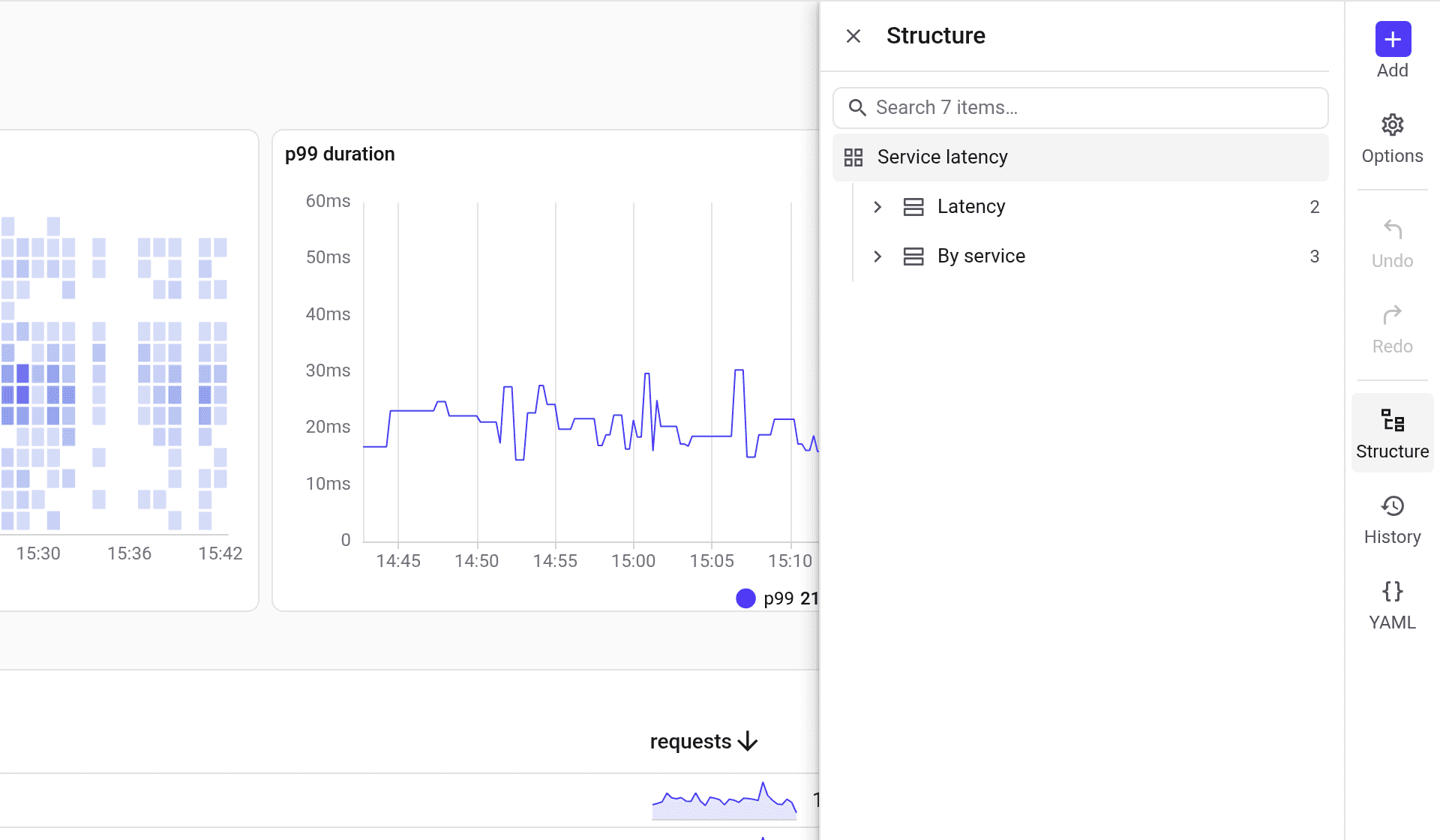
| Structure | Opens a tree of all the groups and widgets of the dashboard |
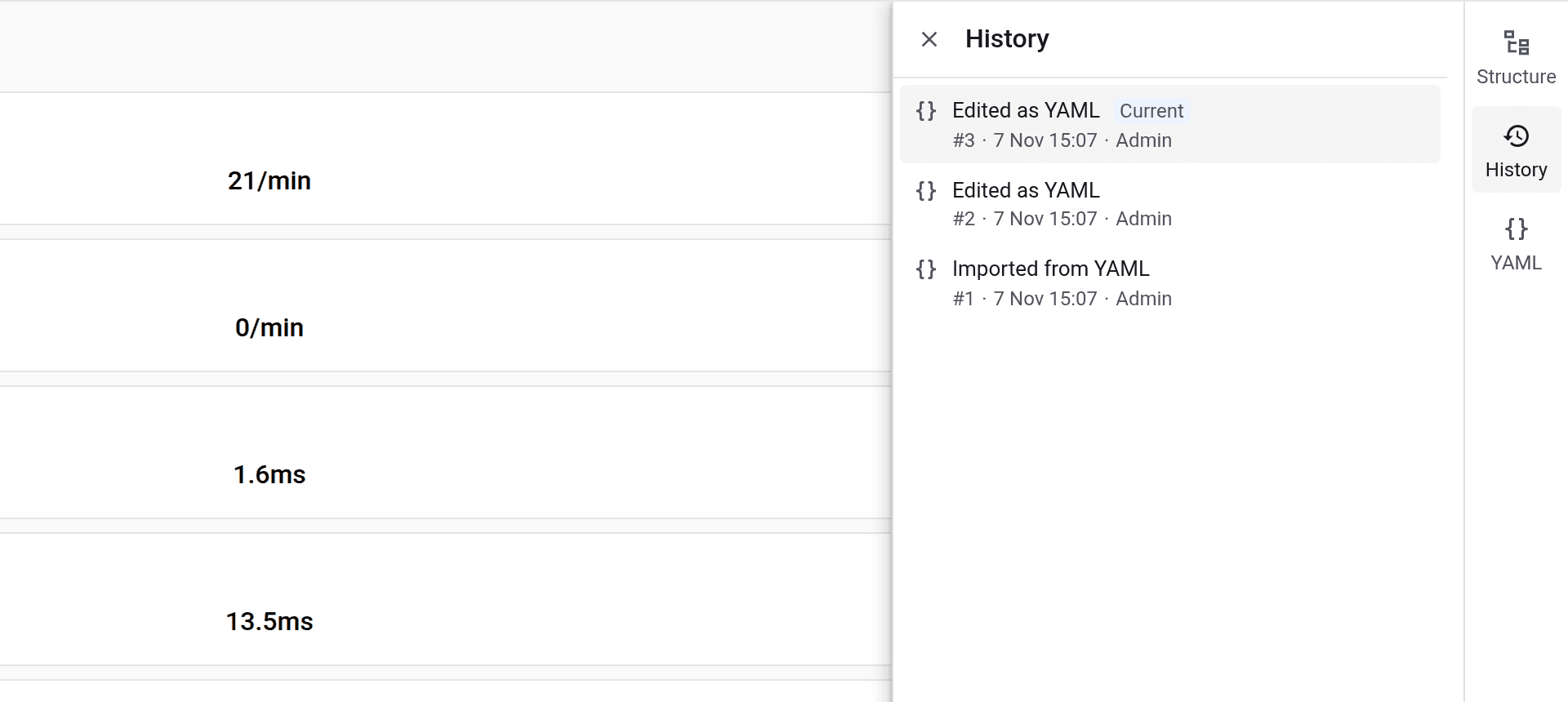
| History | Lists the saved revisions of the dashboard |
| YAML | Shows the dashboard as YAML |
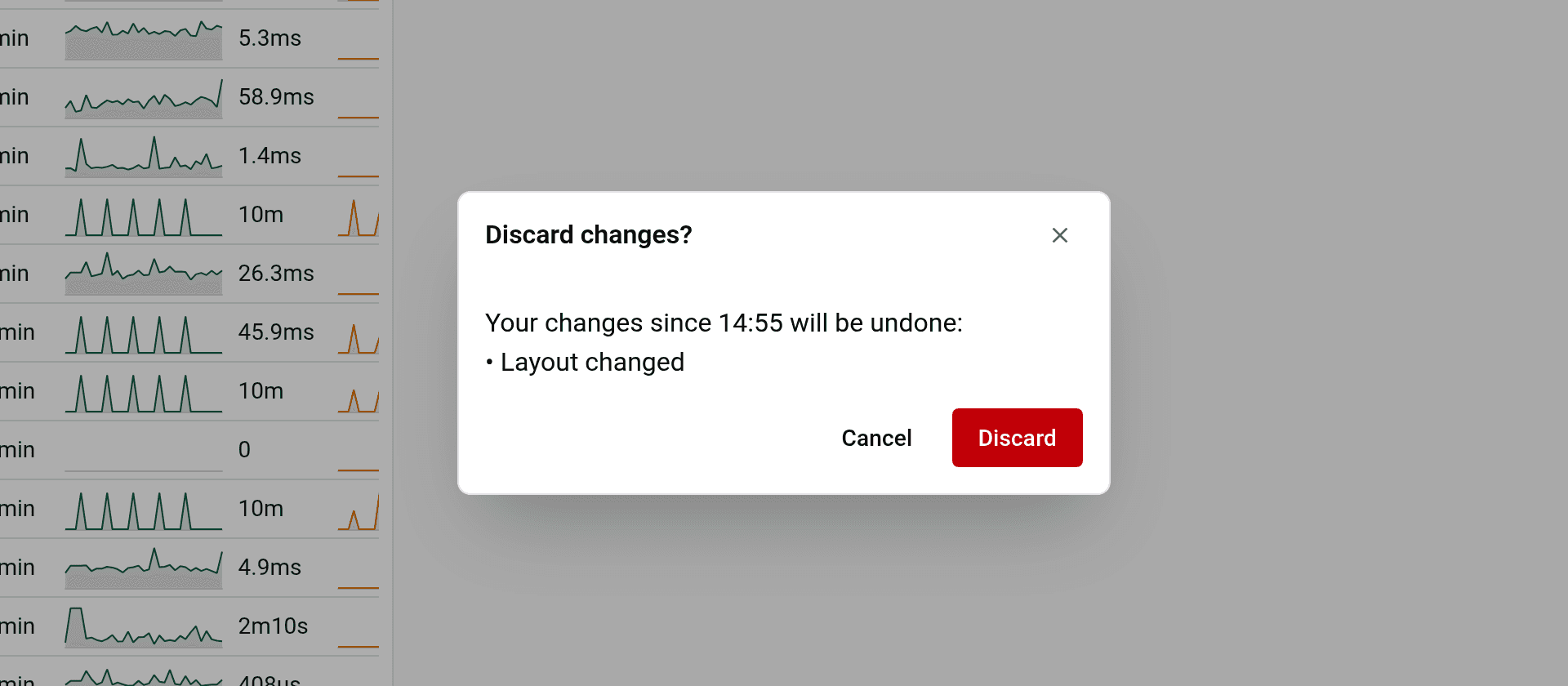
Cancel next to Save discards the draft. If the draft has changes, Cancel lists them first. Click Cancel in the dialog to keep editing, or Discard to leave edit mode without the changes.
Group widgets
Rows and tabs group widgets. To group some widgets:
- Hold Shift and click each widget. The panel of the selection shows how many widgets you selected.
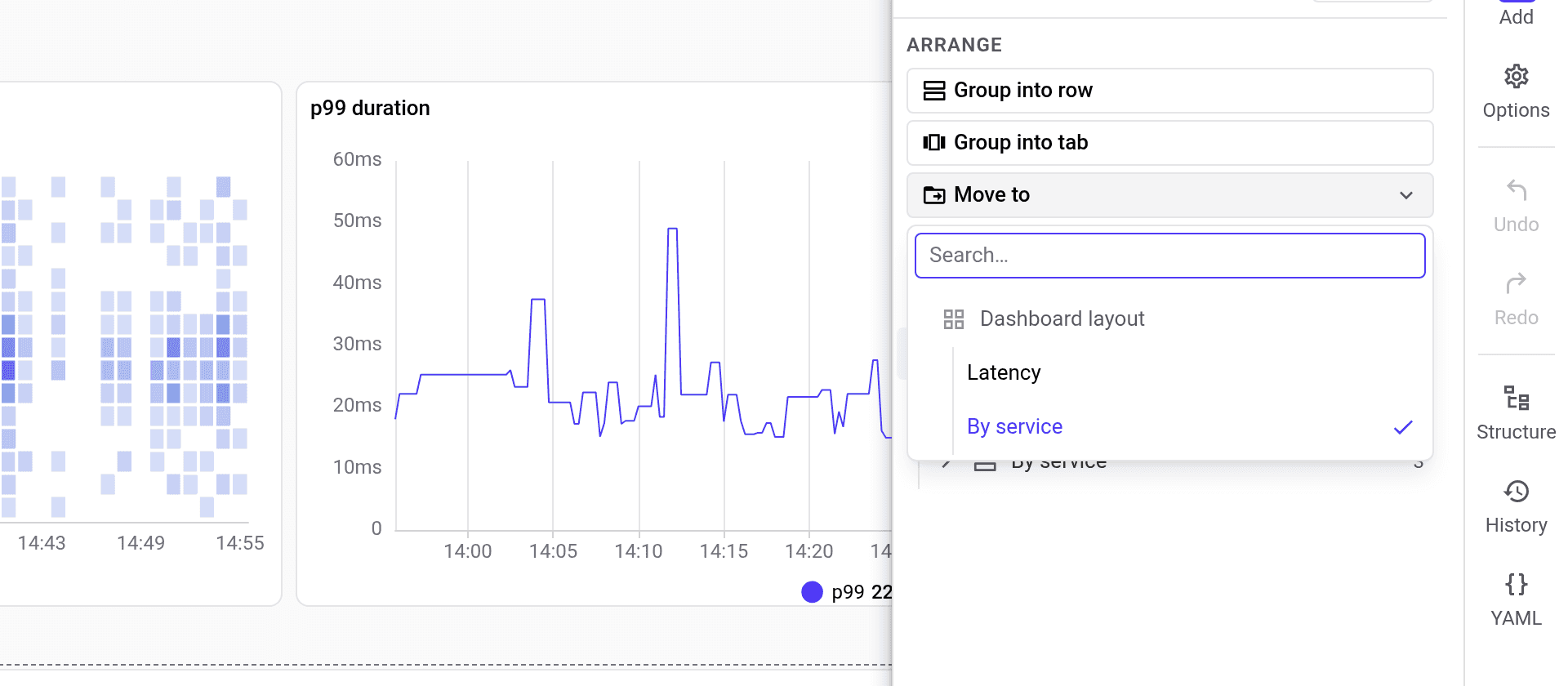
- In the panel, click Group into row or Group into tab.
- Type a title in the panel of the new row or tab.
Group into tab puts the selected widgets in a new tab, and the other widgets in a second tab. To show the rows of a dashboard as tabs, open Options and switch Rows to Tabs. The tabs show in the page header, and the URL holds the open tab.
To change the order of the tabs, drag a tab along the header in edit mode. With the keyboard, focus a tab and press Alt and an arrow.
A row or a tab holds widgets or other groups, never both. So when you group some widgets of a grid, the other widgets of the grid go into one more row or tab after the new one.
Move widgets
There are three ways to move a widget. Use the one that fits the distance:
- Drag a widget by its title to a new place, into another row, or into another tab. To move it into a closed tab, hold the widget over the tab: the tab opens, and you drop the widget in it.
- Move to moves the selected widgets to a row or a tab that you choose from a list. It is faster than a drag on a large dashboard. Select the widgets with Shift and a click, click Move to in the panel, and type a few letters of the name of the place.
- Move in the panel of a widget or a group moves it. Click the title of the widget or the group to open its panel, and click Move on its line in the Structure part of the panel.
Grid and widget size
The root of the dashboard and each group arrange their widgets on a grid. The Layout of a grid is Auto or Custom. Set the grid of the root in Options, and the grid of a row or a tab in its panel.
An Auto grid places the widgets in cells, one after another:
| Setting | What it sets |
|---|---|
| Max columns | The largest number of widgets side by side |
| Min column width | The narrowest column. Auto picks a width that splits the widgets evenly |
| Row height | The height of every widget, unless a kind of widget is set to Fit content |
| Max height | The tallest that a widget with Fit content grows. A taller one scrolls |
Fit content makes stats as short as their value and tables as tall as their rows. Full width in the panel of a widget gives the widget a line of its own. Align heights within each row stretches every widget of a line to the tallest one.
A Custom grid has 24 columns, and each widget takes the cell you give it. Point at a widget, and drag a corner to resize it. The widgets next to it move to make room.
Max width in the Page part of Options sets the width of the whole dashboard, from Narrow to Full width.
Panels
In edit mode, a panel on the right shows the settings of what you work on:
- Options holds the name and the tags of the dashboard, the page width, and the grid of the root.
- A click on the title of a widget opens its panel: Title, Size and Full width.
- The panel of a row or a tab holds its Title, Show header for a row, and its grid. It opens when you make the row or the tab.
- Structure shows a tree of all the groups and widgets of the dashboard.
History
Each save makes a revision of the dashboard. To see them, click History on the rail. The list shows who changed the dashboard, how, and when. Click a revision to see the dashboard as it was and what Restore changes. Restore writes that revision back as a new revision, so the current one stays in the list.